You remember a sunset photo from a trip, or a rainy street you filmed. You cannot remember where you saved it. The folders are full of dates and camera filenames, so you start opening files one at a time.
ClipSeek lets you describe the scene or use a reference image to search your own library. Photos and video frames share the same Visual search. This guide covers importing, searching, checking the results, and taking the file or clip into your next project.
Import a few files you know
Download ClipSeek, create a library, and drag in a few photos and videos. Start with a recent trip or a small project where you know what you photographed or filmed.
To leave originals in their existing folders, choose Reference source files under Settings → Asset Storage → Import mode. The library stores thumbnails and indexes, while the originals stay where they are. You will need the source drive connected to open an original photo, play a video, or export a file.
Let processing finish before searching. A photo can appear in the asset list before its visual index is ready. Videos also need keyframes extracted, which can take longer. The import guide explains both storage modes.
Describe what you remember seeing
Open Search → Visual, enter a description, and click Search.
Start with “sunset by the sea.” If the results are too broad, add “orange sky” or “people on the beach.” Begin with the subject and setting, then add detail as needed.
| What you remember | A query to try |
|---|---|
| A sunset from a seaside trip | sunset by the sea |
| A walk through the woods | a person in an autumn forest |
| A city street after rain | a rainy street at night with neon lights |
| A cooking video | hands chopping vegetables in a kitchen |
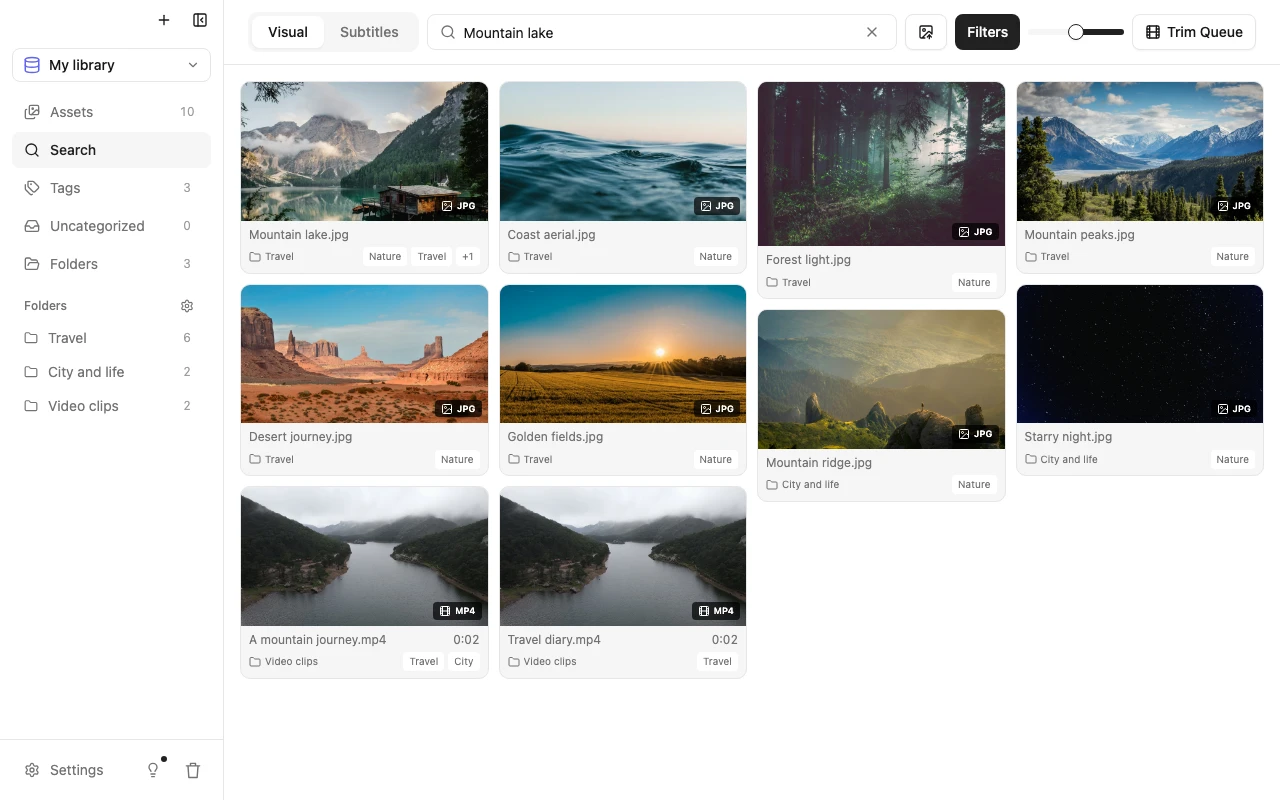
This is an actual app screenshot. Photos and video frames can appear together. Look for related scenes first, then narrow the results.
Use a reference image when you have one
Drag a screenshot or photo into the Visual search box. You can also right-click an asset already in the library and choose Find Similar.
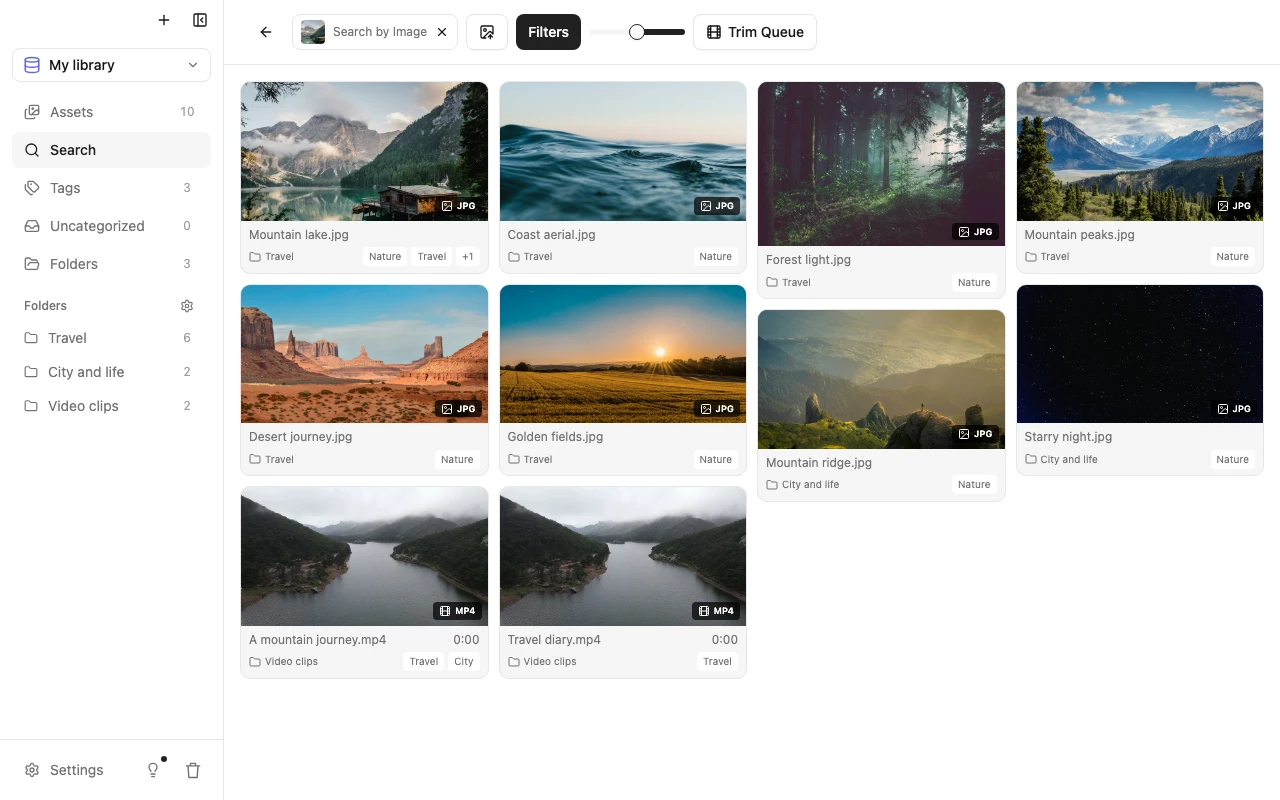
This helps when you want a similar subject or composition. A frame grab can also help locate a scene in a video you have imported. The reference is used for the query and is not automatically added to the library. Search covers your indexed files, rather than images or films on the web.
For photos, filter by type and check the details
Choose Image under Filters to remove video frames. Add a folder or tag if you know the project. Use aspect ratio or resolution when you need a landscape picture or a larger file.
Add filters gradually. For a wide beach photo, search for “beach” first, then choose a landscape ratio. Clear the filters if nothing appears.
Open a photo to check its details, then use Export to save a copy of the original. Add a tag if it is a subject you often reuse. See photo management for more on folders and tags.
For videos, use the timestamp on the card
Switch the type filter to Video. The same file may appear in several cards, each showing a keyframe from a different point. The timestamp helps you reach that moment without starting at the beginning.
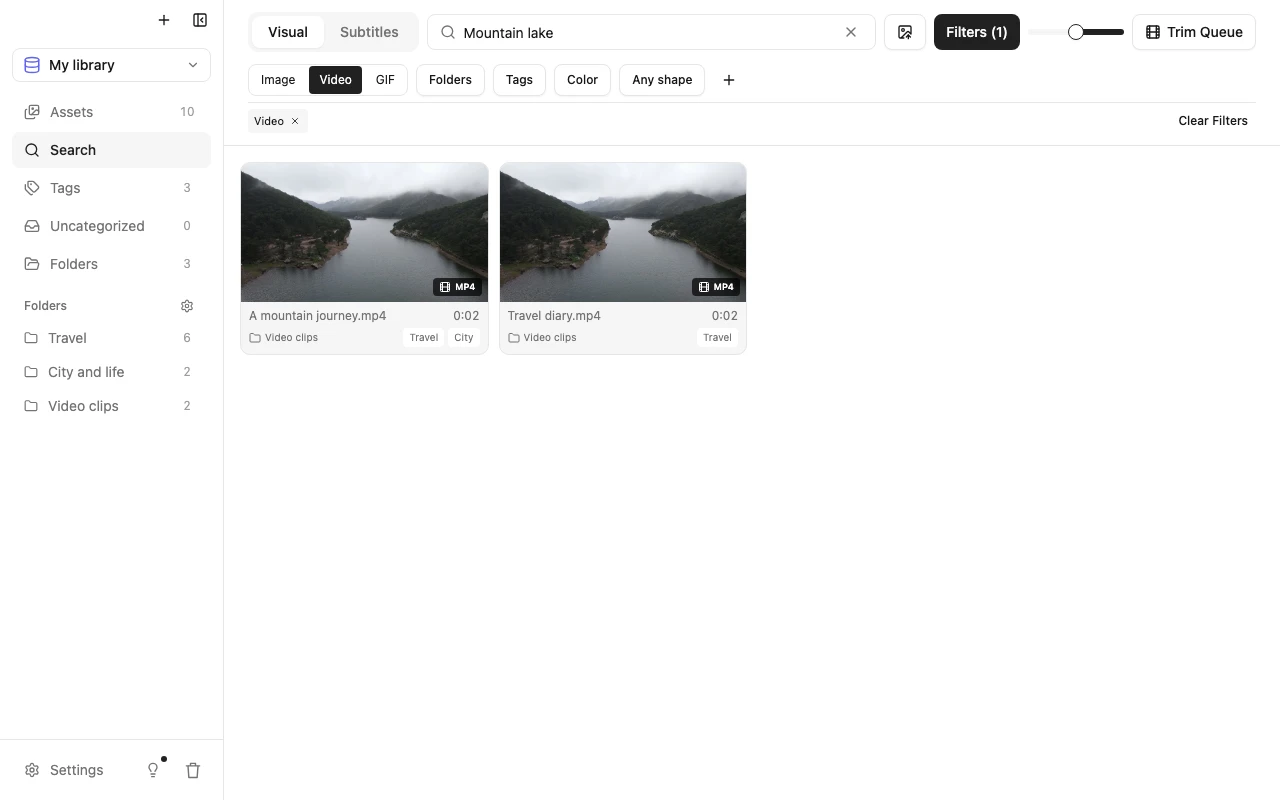
Open the video and watch the surrounding footage. Scores help compare candidates, but a high score does not mean every detail matches. Check whether the shot works for your edit.
To take just part of it, right-click the result and choose Trim Video Clip. Set the start and end on the timeline, check the range with Play Clip, then choose Add to Trim Queue and an export directory.
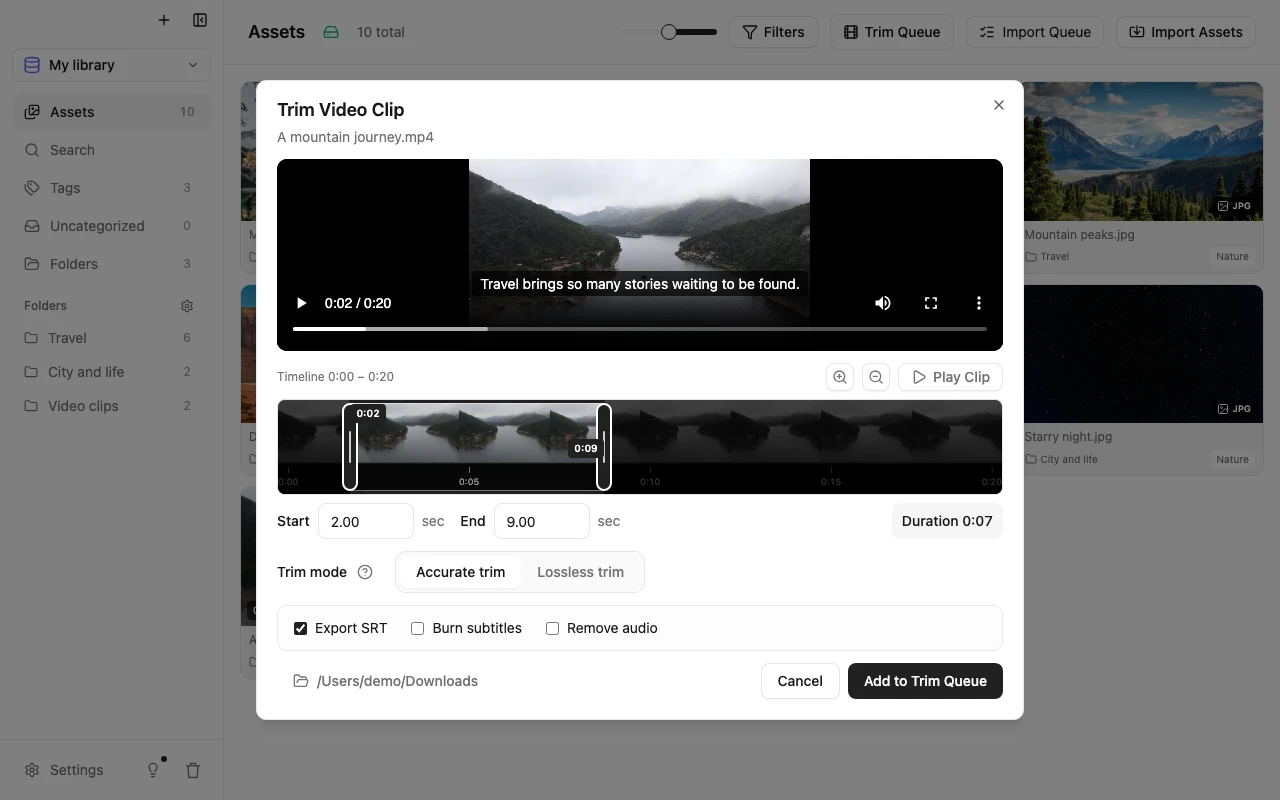
Accurate trim re-encodes to MP4 for precise boundaries. Lossless trim keeps the original encoding and container, but keyframes can affect the boundaries. Check the exported clip. For the whole video, use Export on the asset instead. The trimming guide covers the controls in more detail.
If a file you know is there does not appear
| What happens | What to try |
|---|---|
| A newly imported file is missing from search | Let processing finish and check the visual index. |
| There are too many unrelated results | Add a visible subject, action, or setting, or limit the search to a project. |
| A detailed description finds nothing | Shorten it, clear filters, or use a reference image. |
| You know the filename | Use the filename filter. |
| You remember a line of dialogue | Import timed subtitles and use Subtitle search. ClipSeek does not transcribe speech. |
| A result appears but the original will not open | Reconnect the referenced drive or NAS and check that the file is still at its recorded path. |
Video search uses extracted keyframes, so it can miss a detail that appears only briefly. Try a reference image, or open a related video and check the footage.
Normal desktop importing, indexing, and search happen locally without uploading your originals. The initial model download, updates, and Pro activation need an internet connection. Free supports up to 5 GiB of active original media across all registered libraries. Try a small, familiar batch before importing a whole drive.